Claim a lead and log a call
Who it’s for: Salespeople
Where: Up Next → lead → Log a call
Before you start: Permission to claim and update leads.
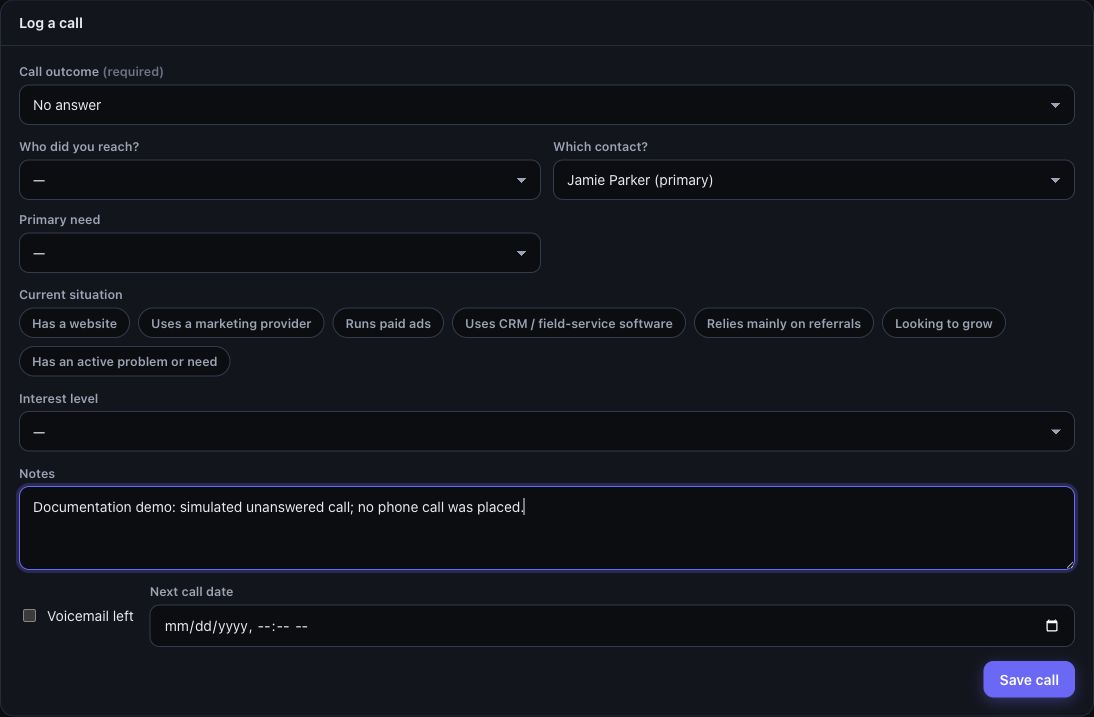
Example workspace with sample data.
- Open Up Next. Claim a lead or use the next-lead action to pick up work.
- Review its profile, contact details, prior activity and do-not-contact state.
- If contact is appropriate, use the phone link to call through your device’s calling app.
- In Log a call, choose the required Call outcome and record who you reached, primary need and useful notes.
- Fill in any callback or appointment details shown for that outcome.
- Choose Save call and check the activity history.
You’ll know it worked when…
Section titled “You’ll know it worked when…”The call is recorded on the lead and the updated record reflects the outcome.
Notes & limits
Section titled “Notes & limits”- Opening a phone link does not itself log a call. Record the actual outcome afterward.
- Honor do-not-contact markings. See Manage contact suppression.
- Outside calling hours, the form asks for a recorded reason and changes the action to Save with override. Use it only to record a call that already happened, following your company’s contact policy.
- Set yourself Away in the sidebar when you should be skipped by automatic assignment; self-claims remain possible.